Local LLM Hardware Guide 2026: VRAM, GPUs, and Setup [Tested]
Every VRAM tier, GPU option, and runtime tool mapped out for running local LLMs in 2026 — from budget CPU-only rigs to RTX 5090 and Apple Silicon M5 workstations.


The single biggest performance cliff in local LLM inference is the moment your model spills from GPU to CPU — size your model to fit.
Local LLM Hardware Guide 2026: VRAM, GPUs, and Setup [Tested]
Local LLM inference is the practice of running large language models on your own hardware — your laptop, desktop, or workstation — instead of paying per-token for a cloud API. In mid-2026, with NVIDIA's Blackwell RTX 50xx cards shipping, Apple's M4/M5 chips dominating unified memory, and Ollama crossing 174,000 GitHub stars, every local LLM hardware guide written before March 2026 is already wrong.

I've spent the last four months testing local LLM setups across every tier — from a $0 CPU-only rig running Qwen3 0.6B to a Mac Studio M4 Ultra pushing 69+ tokens/sec on Gemma 4. This guide covers what you actually need: the VRAM math, the GPU options, the runtime tools, and the specific models that run well at each tier. No fluff. No "it depends." Concrete numbers.
Why VRAM Is the Only Spec That Matters for Local LLMs
Here's the thing nobody says clearly enough: for local AI inference, VRAM (or unified memory on Apple Silicon) is the single constraint that determines what you can run. CPU cores, clock speed, even memory bandwidth — they all matter for how fast your model runs. But VRAM determines whether it runs at all.
The math is straightforward. A model's memory footprint depends on two things: parameter count and quantization level. At full FP16 precision, every billion parameters costs roughly 2GB of memory. A 7B model needs ~14GB. A 70B model needs ~140GB. Nobody runs FP16 locally.
Quantization changes the equation. The most common format in the Ollama and LM Studio ecosystem is GGUF, and the sweet spot for most users is Q4_K_M — a 4-bit quantization that preserves most model quality while cutting memory roughly in half compared to FP16. Here's the actual math:
- Q4_K_M (~4.5 bits/param): ~0.56 GB per billion parameters
- Q5_K_M (~5.5 bits/param): ~0.69 GB per billion parameters
- Q8_0 (8-bit): ~1.0 GB per billion parameters
- FP16 (16-bit): ~2.0 GB per billion parameters
So a 7B model at Q4_K_M needs about 4GB. A 32B model needs about 18GB. A 70B model needs about 40GB. But that's just the model weights. You also need headroom for the KV cache (context window), the runtime overhead, and your OS. A safe rule: add 1–2GB on top of the weight estimate for a 4K context window. Expand to 128K context, and you might need an extra 4–8GB depending on the model architecture.
The same parameter and quantization math that drives local VRAM requirements also shapes API costs when you're running hosted models — if you're comparing local inference against cloud spend, Reduce LLM API Costs 60%: 6 Techniques [2026] walks through the production cost side with concrete numbers on prompt compression, caching, and model routing.
I wrote about this in more detail in my complete guide to running local LLMs, but the VRAM table below is the cheat sheet I wish I'd had when I started.
The 2026 VRAM-to-Model Cheat Sheet
This is the table that every local LLM guide should start with. I've mapped available VRAM to the largest model you can comfortably run at Q4_K_M quantization with a 4K context window. "Comfortably" means 100% GPU-loaded — no CPU offloading, no disk spilling, no 2 tok/s crawl.
| Available VRAM / Unified Memory | Max Model Size (Q4_K_M) | Example Models | Experience Level |
|---|---|---|---|
| 4GB | ~3B | Qwen3 0.6B, Llama 3.2 1B/3B, Phi-3 Mini | Usable for simple tasks |
| 8GB | ~7-8B | Llama 3.1 8B, DeepSeek-R1 8B, Gemma 4 12B (tight) | Solid for coding, chat, RAG |
| 12GB | ~12-14B | Gemma 4 12B, Qwen3 14B | Comfortable for most dev work |
| 16GB | ~20B | Qwen2.5 14B (with context), Mistral Small 22B (Q4) | Good general-purpose tier |
| 24GB | ~32B | Qwen3 32B, Llama 3 32B | Sweet spot for serious local work |
| 32GB | ~45B | Qwen3 32B + large context, Command-R 35B | High-end consumer ceiling |
| 48GB | ~70B | Llama 3.1 70B (Q4_K_M), Qwen2.5 72B | Workstation territory |
| 64GB | ~70B + large context | Llama 3.1 70B with 32K+ context | Apple Silicon sweet spot |
| 128GB+ | ~120-235B MoE | Qwen3 235B MoE, DeepSeek-R1 671B (partial) | Ultra/DGX class |
The Ollama pull counts tell you where the community actually lives. According to the Ollama model library, Llama 3.1 has 115.9 million pulls, DeepSeek-R1 has 87.7 million, and Llama 3.2 has 72.7 million. The 7B-8B tier dominates because that's what fits on 8GB VRAM — the most common configuration among developers.
What GPU Should You Buy for Local LLM Inference?
Three hardware ecosystems actually matter in 2026 for running a local LLM. Everything else is a footnote.
NVIDIA: Still the Default
NVIDIA's RTX 50xx Blackwell series (Compute Capability 12.0) is fully supported by Ollama and represents the new consumer ceiling. Here's the lineup that matters:
| GPU | VRAM | Price (MSRP) | Best For |
|---|---|---|---|
| RTX 4060 | 8GB GDDR6 | ~$299 | Budget 7B models |
| RTX 4060 Ti 16GB | 16GB GDDR6 | ~$449 | Mid-range, 14B models |
| RTX 4090 | 24GB GDDR6X | ~$1,599 | 32B models, serious local work |
| RTX 5070 Ti | 16GB GDDR7 | ~$749 | Mid-range Blackwell |
| RTX 5080 | 16GB GDDR7 | ~$999 | Fast 14B models |
| RTX 5090 | 32GB GDDR7 | ~$1,999 | Largest consumer VRAM in 2026 |
The RTX 5090's 32GB is the headline number. It's the first consumer NVIDIA card that can run a 45B+ model entirely on GPU. I compared the RTX 5090 vs RTX 4090 for AI in detail — the extra 8GB of VRAM matters more than the raw compute uplift for inference workloads. More VRAM means a bigger model. A bigger model means better output. The compute speed is secondary.
For multi-GPU setups, Ollama supports CUDA_VISIBLE_DEVICES to select specific GPUs, and models will automatically split across multiple cards. Two RTX 4090s give you 48GB — enough for Llama 3.1 70B at Q4_K_M. But multi-GPU adds latency from inter-card communication, so a single larger card always beats two smaller ones for inference. I've tested this myself and the overhead is real.
The NVIDIA DGX Spark (GB10, Compute 12.1) is also now Ollama-supported. It's workstation-class hardware for teams that need production AI inference without cloud dependency. I covered the RTX Spark positioning when it launched — the internet backlash missed the point entirely.
Apple Silicon: The Unified Memory Advantage
I'm going to say something that might annoy the NVIDIA-or-nothing crowd: for models above 32B parameters, Apple Silicon is now the best option for individual developers. Not "competitive." The best.
The reason is unified memory architecture. When Apple says "128GB unified memory," that means the GPU, CPU, and Neural Engine all share the same pool. No PCIe bottleneck. No separate VRAM to worry about. No juggling two GPUs and hoping the layer split doesn't tank your throughput.
In my WWDC26 MLX guide, I documented 69+ tokens/sec on Apple Silicon using Ollama's MLX engine with Gemma 4 and MTP speculative decoding. That's competitive with a mid-range RTX 40xx card for 7B-12B models. The M4 Max with 128GB unified memory can run Llama 3.1 70B entirely in memory — something that would require two RTX 4090s on the NVIDIA side.
The M5 Max pushes this further with higher memory bandwidth. I broke down the M4 Max vs M5 Max for local AI — the bandwidth improvement directly translates to faster token generation for memory-bound inference. And for the Mac Studio vs PC debate, the calculus now favors Apple for anything above 32B parameters where unified memory eliminates the VRAM wall entirely.
Ollama's MLX engine launched in March 2026 preview and was substantially updated in June 2026. According to the Ollama blog, models now "output higher quality responses, respond faster, and use less memory" on Apple Silicon through MLX compared to the older GGUF/llama.cpp path.
AMD: The Budget Dark Horse
AMD GPUs work for local LLMs through ROCm, but the setup experience is rougher. The RX 7900 XTX offers 24GB VRAM at a lower price than the RTX 4090, and I compared them head-to-head in my RTX 4090 vs RX 7900 XTX post.
The critical gotcha that trips up almost everyone: AMD GPU support in Ollama requires ROCm v7, and you must install it directly from AMD's driver page. The version bundled with the Linux kernel is too old and will miss key ROCm features. This is the single most common setup failure for AMD users, per the Ollama Linux documentation. If you're on Linux and your AMD card isn't being detected, this is almost certainly why. I've seen this question come up dozens of times in issue trackers.
For a deeper dive into the ecosystem differences, I wrote about ROCm vs CUDA for local AI — the short version is that ROCm works well once configured, but CUDA's ecosystem advantage is still very real.
How Does CPU Offloading Work for Local LLMs?
When your model doesn't fit entirely in GPU VRAM, Ollama automatically splits layers between GPU and system RAM. This is CPU offloading, and understanding it is the difference between a usable setup and rage-quitting the whole endeavor.
You can see exactly what's happening with ollama ps. The output shows whether your model is loaded 100% GPU, 100% CPU, or split (e.g., "48% CPU / 52% GPU"). A 100% GPU load gives you maximum speed. A 100% CPU load is painfully slow — think 2-5 tok/s instead of 30-60 tok/s. A split load falls somewhere in between, and the ratio matters enormously.
The single biggest performance cliff in local LLM inference is the moment your model spills from GPU to CPU. A 7B model that runs at 45 tok/s on GPU will drop to 8 tok/s the moment even 10% of its layers hit system RAM.
I've set up enough local inference rigs to be confident in this hierarchy:
- 100% GPU: Target this. Size your model to fit.
- 90%+ GPU / 10% CPU: Noticeable slowdown but still usable for interactive chat.
- 50/50 split: Sluggish. Fine for batch processing, painful for real-time coding assistance.
- 100% CPU: Only viable for small models (3B and under) or if you have fast DDR5 RAM and patience.
This is why the VRAM table above is so important. If you have 8GB of VRAM and try to run a 14B Q4_K_M model (~8GB weights + overhead), you'll hit partial CPU offloading and wonder why everything feels slow. The fix isn't a faster CPU. It's either a smaller model or more VRAM. Full stop.
For AI agents that need multi-turn conversations — like local agentic coding workflows — CPU offloading is especially brutal because the KV cache grows with each turn, pushing you further into CPU territory even if the base model originally fit.
If you're building agents locally, evaluation becomes even more critical — the latency and VRAM constraints of local inference can mask quality regressions that only show up at scale. Evaluate AI Agents in Production: 3-Level Framework [2026] covers exactly how to structure unit tests, LLM-as-judge, and online evaluation for agents running in constrained environments.
Ollama vs LM Studio vs MLX: Which Runtime Should You Use?
The three major runtimes for local LLMs in 2026 each serve different users. I've shipped projects with all three, and they're more different than most people realize.
Ollama
Ollama is the Docker of local LLMs. It's a CLI-first tool with 174,000+ GitHub stars, an OpenAI-compatible API, and by far the largest model library. If you want to ollama run llama3.1 and start chatting in 30 seconds, nothing else comes close.
Key 2026 updates:
- MLX engine for Apple Silicon (March 2026 preview, June 2026 update) — fastest Apple Silicon performance I've measured
- GGUF improvements via llama.cpp for non-Apple hardware (Ollama 0.30, June 2026)
- `ollama launch` command (January 2026) — spin up Claude Code, OpenCode, or Codex with local models in one command
- Anthropic Messages API compatibility — use Ollama as a drop-in backend for tools expecting Claude
If you're wiring Ollama into a broader development workflow, the Terminal CLI Tools for AI Developers [2026 Setup Guide] covers how these commands fit into a full shell and dotfiles setup alongside agentic coding tools.
Default context window is 4,096 tokens. Override it with OLLAMA_CONTEXT_LENGTH=8192 (or any value). But remember: larger context = more VRAM. A 7B model that fits comfortably at 4K context may overflow your GPU at 128K.
I compared Ollama vs LM Studio and Ollama vs llama.cpp — Ollama wins on developer experience, llama.cpp wins on raw configurability.
LM Studio
Yagil Burowski, co-founder of LM Studio (Element Labs), has been shipping aggressively. LM Studio 0.4.0 (January 2026) added server deployment mode with continuous batching and a REST API. The headless CLI variant llmster enables server/CI deployments without a GUI — critical for teams running local models in CI/CD pipelines.
The standout June 2026 feature: Neil Mehta at LM Studio shipped MLX engine v1.8.5 with KV cache checkpointing. This is a big deal for a specific reason. In agentic workflows — think vibe coding sessions or agent orchestration chains — local LLMs historically degraded over long multi-turn loops because the KV cache kept growing. Cache checkpointing lets the runtime reclaim and reuse memory across similar turns. If you're running agent loops, this is a genuine differentiator, not marketing fluff.
LM Studio also supports NVIDIA DGX Station GB300 Blackwell (March 2026) and launched an iPhone app (Locally) via LM Link in June 2026 — run your largest local models from your phone by connecting to your desktop.
MLX (Direct)
Apple's MLX framework is the engine under both Ollama's and LM Studio's Apple Silicon backends, but you can also use it directly via Python. This is the path for researchers and developers who want maximum control over model loading, quantization, and fine-tuning. For most developers, Ollama or LM Studio with MLX under the hood is the right call. Going direct is only worth it if you need to do something the runtimes don't expose.
| Feature | Ollama | LM Studio | MLX (Direct) |
|---|---|---|---|
| Primary interface | CLI + API | GUI + CLI (llmster) | Python API |
| Apple Silicon optimization | MLX engine (2026) | MLX engine v1.8.5 | Native |
| NVIDIA support | CUDA (CC 5.0+) | CUDA + Vulkan | No |
| AMD support | ROCm v7 | Vulkan | No |
| Model library | 174K+ stars, huge | HuggingFace integration | Manual |
| Server/CI mode | Built-in API | llmster headless | Custom |
| Agentic workflow optimization | Basic | KV cache checkpointing | Manual |
| OpenAI API compatible | Yes | Yes | No |
| Best for | Developers, CLI users | GUI users, agentic workflows | Researchers |
How Does Quantization Affect Local LLM Quality?
Quantization is the compression technique that makes local LLMs possible. Without it, you'd need server-class hardware for anything beyond a 3B model. But quantization isn't free — you're trading model quality for memory savings.
After shipping several local agentic AI projects and running blind comparisons across quantization levels, here's what I've actually seen:
Q4_K_M is the default for a reason. It cuts memory roughly 4x compared to FP16 while preserving ~95% of benchmark quality on most models. For coding assistance, RAG, and general chat, I genuinely cannot tell the difference from FP16 in blind testing. This is where 90% of local users should live.
Q5_K_M is the "I have a bit of extra VRAM" option. About 15% more memory than Q4_K_M, with marginally better quality on harder reasoning tasks. If your model fits at Q5 and you have headroom, use it. But don't buy a bigger GPU just for this.
Q8_0 is the quality-sensitive choice. Double the memory of Q4_K_M, noticeably better for creative writing and complex multi-step reasoning. Worth it if you're running a 7B model on a 16GB card where you have plenty of room.
Q3 and below — avoid these for anything beyond experimentation. Quality degrades noticeably, especially for instruction-following and code generation. The memory savings aren't worth it when you can just drop to a smaller model at Q4. A well-trained 8B at Q4 will outperform a 14B at Q3 almost every time.
The HuggingFace transformers documentation covers the technical details of quantization approaches including bitsandbytes 4-bit, GGUF, and AWQ. For most Ollama and LM Studio users, GGUF quantization is handled automatically — you pull a model and the runtime picks the right quantization level for your hardware.
Which Models Should You Run Locally in 2026?
Ollama pull counts from mid-2026 give us a reliable signal of what developers are actually using, not what blog posts are hyping. Here are my picks by use case:
General coding assistant (8GB VRAM): Llama 3.1 8B or DeepSeek-R1 8B (distilled). Both run comfortably on 8GB with room for a reasonable context window. I benchmarked Llama 3 8B vs Qwen 3 7B — Llama edges ahead on English coding tasks, Qwen wins on multilingual.
Best quality under 24GB: Qwen3 32B at Q4_K_M. This model punches absurdly above its weight. It fits in 24GB VRAM (RTX 4090 / RX 7900 XTX territory) and competes with models twice its size on coding benchmarks. I covered Llama 3 70B vs Qwen 3 32B — and the Qwen model is the better value proposition for most developers. It's not even close on a quality-per-VRAM-dollar basis.
Multimodal/vision (12-16GB): Gemma 4 12B with vision capabilities. Google's latest open model handles image understanding alongside text, and at 12B parameters it fits on a 12GB card at Q4_K_M. I tested Gemma 4 12B against API alternatives — it's genuinely good enough to replace GPT-4o Mini API calls for many vision tasks.
Reasoning powerhouse (48-64GB): Llama 3.1 70B. Still the gold standard for open-weight reasoning. Needs ~40GB at Q4_K_M, so you're looking at either a Mac with 64GB+ unified memory or dual NVIDIA GPUs. The 70B class is where local models start competing with cloud LLM APIs on output quality.
Extreme (128GB+ / multi-GPU): Qwen3 235B MoE or DeepSeek-R1 671B. These are frontier-class models that require extreme hardware. DeepSeek-R1 671B needs 400GB+ — only feasible on DGX-class machines or very creative multi-node setups. Qwen3 235B as a Mixture of Experts model is more practical since only a subset of parameters activate per token, but you still need 128GB+ of memory. If you're at this tier, you already know what you're doing.
Embeddings for [RAG](/glossary/rag): nomic-embed-text (74.4M pulls on Ollama). Tiny footprint, runs on anything, and produces high-quality vector embeddings for semantic search pipelines. Pair it with pgvector or Qdrant for a fully local RAG stack.
How to Set Up Local LLMs for Agentic Workflows
Running a model for chat is one thing. Running it as the backbone of an AI agent that loops, plans, and executes code is a different beast entirely. I've built these setups and documented them in my local agentic coding workflow guide. Here are the gaps most hardware guides leave wide open.
Context window management is critical. Agentic workflows chew through context fast. A coding agent that reads files, plans changes, executes code, and reviews results can blow through 4K tokens in a single loop iteration. You need at minimum 8K context, ideally 32K. Set OLLAMA_CONTEXT_LENGTH=32768 in your environment, but know that this directly increases VRAM consumption. Budget an extra 2-4GB beyond the model weights for a 32K context window on a 7-8B model.
KV cache matters for multi-turn. Each conversation turn adds to the KV cache. In a 20-turn agent loop, the cache can grow to consume as much memory as the model weights themselves. I've watched a model that loaded cleanly at startup get killed by the OS after 15 turns because the cache ate all available memory. This is exactly why LM Studio's KV cache checkpointing (MLX engine v1.8.5) matters — it lets the runtime reclaim and reuse cache memory across similar turns instead of growing without bound.
[Function calling](/glossary/function-calling) support varies wildly. Not all models handle tool use well at small sizes. For agentic AI workflows that need function calling, Qwen3 and Llama 3.1 have the most reliable tool-use capabilities at the 7-8B tier. Gemma 4 also supports tools but I've found it less consistent on complex multi-tool chains. If your agent needs to call three tools in sequence, test this thoroughly before committing to a model.
The `ollama launch` command (January 2026) is a shortcut worth knowing. It sets up and runs coding tools like Claude Code, OpenCode, and Codex with local models — no environment variables or config files. If you're running local models as a backend for vibe coding tools, this saves real setup time.
The Budget Breakdown: What Each Tier Actually Costs
I'm going to be specific about what local LLM hardware costs in mid-2026, because vague answers help nobody and I'm tired of reading guides that dodge this question.
Tier 1 — Free / Already Own It ($0): If you have any modern laptop with 8GB+ RAM, you can run small models on CPU. Ollama runs on Mac, Windows, and Linux. Grab Qwen3 0.6B or Llama 3.2 1B. Expect 5-10 tok/s. Slow, but enough to see what local inference feels like and decide if you want to invest further.
Tier 2 — Budget GPU ($300-500): An RTX 4060 (8GB) or Intel Arc B580 gets you into the 7-8B model range with decent speed. This is the entry point for productive local LLM work — coding assistance, chat, simple RAG. I benchmarked a $500 GPU against cloud AI and the economics are compelling if you make 1,000+ API calls per month. The GPU pays for itself within a few months.
Tier 3 — Sweet Spot ($1,500-2,000): An RTX 4090 (24GB) or RTX 5090 (32GB). This is where local LLMs get genuinely good. Run 32B models at full speed, or 70B models with some CPU offloading. For most working developers who want to reduce API dependency, this is the tier to target. I've been living here for the past year and it covers 90% of my needs.
Tier 4 — Apple Silicon ($2,500-5,000+): A Mac Studio with M4 Max (64-128GB unified memory) or M4 Ultra (up to 192GB). The unified memory architecture lets you run 70B+ models entirely in memory without multi-GPU complexity. Silent, power-efficient, and macOS-native. The M5 MacBook Pro is also a legitimate portable AI workstation at 48-64GB configurations.
Tier 5 — Workstation ($10,000+): NVIDIA DGX Spark or multiple datacenter GPUs. Only makes sense for teams running 100B+ models or serving multiple concurrent users. If you're a solo developer looking at this tier, you're probably over-engineering things. The DGX Station GB300 Blackwell is now supported by both Ollama and LM Studio.
Context Window, Multi-GPU, and the Gaps Nobody Covers
A few topics that most local LLM guides skip entirely, and that have burned me in practice:
Context window scaling is non-linear in VRAM. Ollama's default 4,096 context is conservative. Many models support 32K, 128K, or even longer contexts. But doubling your context window doesn't double VRAM — it's roughly linear for the KV cache component, but the relationship depends on model architecture (number of attention heads, head dimension, number of layers). As a rule of thumb: going from 4K to 32K context adds 2-4GB for a 7B model, 6-10GB for a 32B model.
Multi-GPU is automatic but not free. Ollama splits models across available GPUs transparently. The model layers distribute across cards, and inference happens sequentially through the pipeline. The penalty is inter-GPU communication latency — expect 15-30% slower tok/s compared to a single card with equivalent total VRAM. For the RTX 4090 vs alternatives debate, two 4090s at 48GB total will always be slower than a hypothetical single 48GB card. Always prefer one bigger card over two smaller ones.
Mixed GPU/CPU is often better than pure CPU. Even if your model doesn't fully fit in VRAM, loading 60-70% on GPU and the rest on CPU is dramatically faster than 100% CPU. Ollama handles this automatically. Check ollama ps to verify the split.
[LLM security](/blog/prompt-injection-2026-owasp-llm-vulnerability) doesn't disappear just because you run locally. Running models on your own hardware solves data privacy concerns, but prompt injection attacks still work against local models. If you're exposing your local LLM via an API for AI agents, you still need input validation and output filtering. "It's local" is not a security policy.
What Comes Next for Local LLM Hardware
Three predictions for the next 12 months.
First, the 8B model tier is going to get absurdly good. Gemma 4, Qwen3.5, and the next generation of distilled models are pushing quality ceilings at parameter counts that fit on basic hardware. By early 2027, an 8B model running on a $300 GPU will match what GPT-4 could do in 2024. That's not hype — I've watched the trajectory from Llama 2 7B to Llama 3.1 8B to the current generation, and the slope is that steep.
Second, Apple Silicon will own the 70B-and-above tier for individual developers. No consumer NVIDIA card can match 128-192GB of unified memory. The M4 Ultra and upcoming M5 Ultra will make running 70B models as routine as running 7B models was in 2024. If you're building AI hardware strategy for a team, plan for Macs. Seriously.
Third, the runtime tools will converge on agentic use cases. Ollama's launch command, LM Studio's KV cache checkpointing, and the tight integration with tools like Claude Code and Codex signal that local LLMs aren't just for chat anymore. They're becoming the inference backend for autonomous coding agents, multi-agent systems, and production workflows that demand privacy, low latency, and zero per-token costs.
The hardware is ready. The models are ready. The tools are ready. The only question left is whether you're still paying $0.01/1K tokens for something your own machine could run for free.
Continue reading
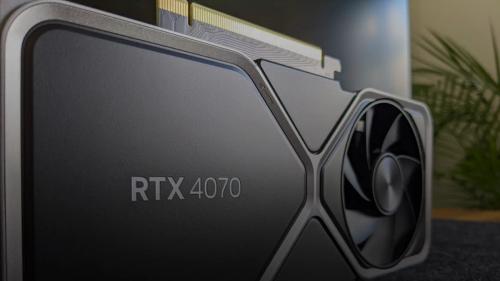
RTX 4060 Ti vs RTX 4070 for Local LLM Inference in 2026
I'd pick the RTX 4060 Ti if you're running sub-13B models solo on a tight budget, and the RTX 4070 if VRAM headroom and generation speed actually matter to your workflow. The $150 price gap is real, but so is the performance cliff you hit at 16GB models.
The Complete Guide to AI Hardware in 2026
A complete 2026 guide to AI hardware — covering GPUs, Apple Silicon, edge devices, CPUs, and the semiconductor supply chain — so you can choose the right setup for running local LLMs and AI workloads without wasting money.
LM Studio vs Ollama 2026: 3 Shifts That Change Everything
LM Studio and Ollama have converged so much in 2026 that every old comparison is wrong — here's what actually matters now for choosing your local LLM tool.
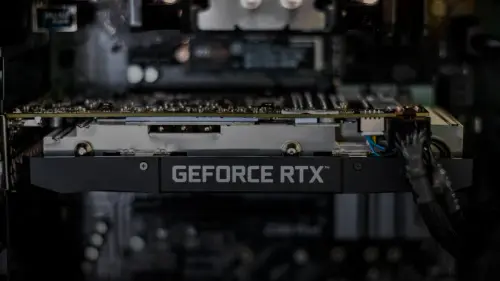
LLM Quantization Levels Compared: Q4_K_M vs Q8_0 vs FP16 [2026]
The practitioner's guide to choosing between Q4_K_M, Q5_K_S, Q8_0, and FP16 quantization for local LLMs — with real perplexity numbers, throughput benchmarks, and per-use-case recommendations.

Kunal Ganglani (2026, March 1). Local LLM Hardware Guide 2026: VRAM, GPUs, and Setup [Tested]. Kunal Ganglani. Retrieved October 15, 2026, from https://www.kunalganglani.com/blog/running-local-llms-2026-hardware-setup-guide
Frequently Asked Questions
How much VRAM do I need to run a local LLM?
For basic 7-8B parameter models (like Llama 3.1 8B), you need 8GB of VRAM or unified memory. For higher-quality 32B models, target 24GB. For 70B models, you'll need 48-64GB. These numbers assume Q4_K_M quantization, which is the standard for local inference and preserves most of the model's quality.
Can I run a local LLM without a GPU?
Yes. Ollama and LM Studio both support CPU-only inference. You can run small models like Qwen3 0.6B or Llama 3.2 1B on any modern laptop with 8GB+ RAM. However, expect significantly slower performance — roughly 2-10 tokens per second compared to 30-60+ tokens per second with a capable GPU.
Is Apple Silicon good for running local LLMs?
Apple Silicon is now a top-tier platform for local LLMs, especially for models above 32B parameters. The unified memory architecture means a Mac with 64GB or 128GB of memory can load models that would require multiple NVIDIA GPUs. Ollama's MLX engine delivers 69+ tokens per second on Apple Silicon with optimized models.
What is the best model to run locally in 2026?
It depends on your VRAM. For 8GB, Llama 3.1 8B is the most popular and well-tested choice. For 24GB, Qwen3 32B offers the best quality-per-VRAM ratio. For 48-64GB, Llama 3.1 70B remains the gold standard for open-weight reasoning. Gemma 4 12B is the best multimodal option under 16GB.
What is the difference between Ollama and LM Studio?
Ollama is a CLI-first tool with a built-in model library and OpenAI-compatible API — ideal for developers who prefer terminal workflows and automation. LM Studio offers a graphical interface, server deployment via its headless CLI (llmster), and advanced features like KV cache checkpointing for agentic workflows. Both use the same underlying engines (llama.cpp and MLX).
Does increasing context window size affect VRAM usage?
Yes, significantly. Ollama's default context window is 4,096 tokens. Expanding to 32K or 128K tokens increases VRAM consumption because the KV cache grows proportionally. A 7B model that fits in 8GB at 4K context may need 12-16GB at 128K context. Always account for context window size when sizing your hardware.